



Video Tutorial
SocialVPS.net — Before we begin, let’s understand what Dropbox is. Dropbox is a cloud storage service that allows you to store, share, and access files online. With Dropbox, you can upload various types of files such as documents, images, videos, and more, then access them from any device connected to the internet. Additionally, Dropbox supports team collaboration by enabling file sharing and collaborative work on the same document.
Steps to Upload Files to a VPS Using Dropbox
Step 1: Sign Up for Dropbox
To get started, visit the official Dropbox website (dropbox.com) and sign up. The process is very simple! Click the “Sign Up” button, then fill in the required information such as your name, email, and password. You can also sign up using your existing Google account for easier access.
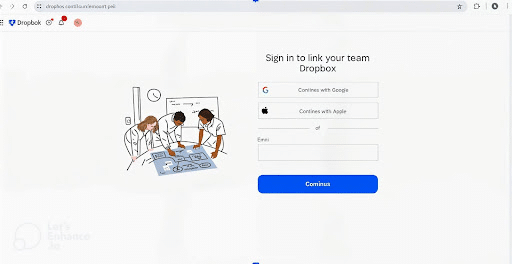
Step 2: Upload Files to Dropbox
After signing up and logging in, it’s time to upload the files you want to back up. Look for the “Upload” button on the main page and click it. A window will appear where you can select the files you want to save.
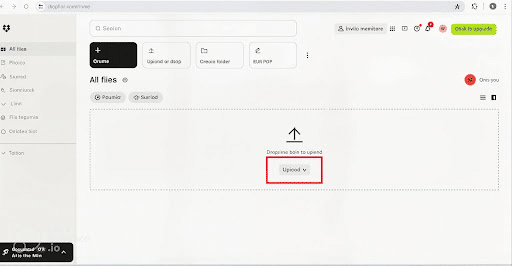
For example, if you want to save a JPEG image, select the file and click “Open.”
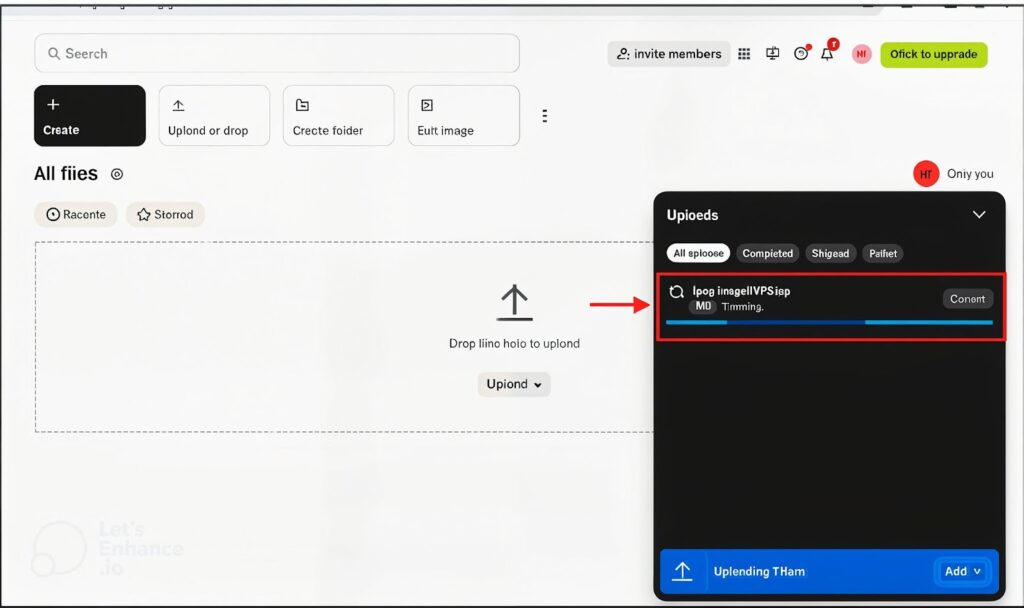
Wait until the upload process is complete. Once done, the file will be available in your Dropbox account.
Step 3: Access Dropbox on Your VPS
Now, open your VPS via the terminal or an SSH client like PuTTY. If you have a browser installed on your VPS (e.g., Chrome), go to the Dropbox site and log in using the account you registered.
After logging into Dropbox on your VPS, locate the file you want to download. Check the box next to the file, then click the “Download” button at the top center. Wait until the download process is complete.
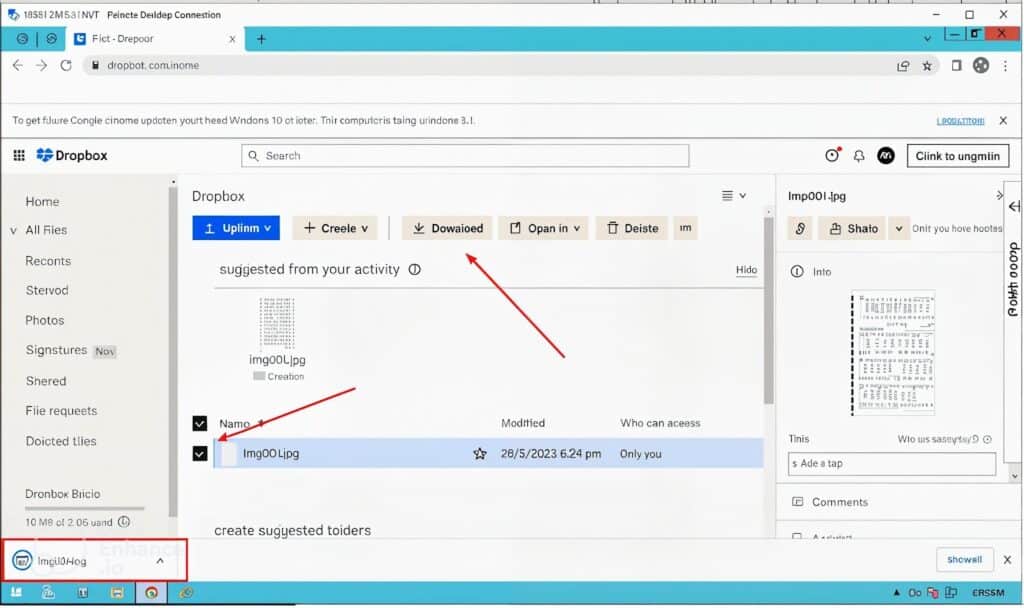

Alternative: Using Wget on Your VPS
If you don’t want to open a browser on your VPS, you can use the wget command to download files directly from Dropbox. Here’s how:
- Get the file link by right-clicking on the file and selecting “Copy Link.”
- Modify the Dropbox link to make it downloadable. Usually, replace
dropbox.comwithdl.dropboxusercontent.com. - In your VPS terminal, type:
wget https://dl.dropboxusercontent.com/s/your-file-linkReplace your-file-link with the Dropbox file link you copied.
Alternative: Using Dropbox CLI or Rclone
For advanced users, you can use Dropbox CLI or Rclone to automatically synchronize between Dropbox and your VPS. This allows you to automate the file transfer process without having to do it manually every time.
Conclusion
Dropbox remains one of the best cloud storage services in the modern era. Its features, such as cross-device synchronization, strong data security, and the ability to automate backups, make it highly relevant for both personal and professional users. Although its free storage space is limited, Dropbox is ideal for those who prioritize stability and ease of sharing.
FAQs
Is Dropbox safe for storing important files?
Yes, Dropbox offers data encryption during transfer and storage. However, ensure you use a strong password and enable two-factor authentication (2FA) for added security.
How do I use Rclone to synchronize Dropbox with my VPS?
You can install Rclone on your VPS and configure it to connect to your Dropbox account. Once set up, you can use commands like rclone sync to automatically transfer files between Dropbox and your VPS.
Can I upload large files to Dropbox?
Yes, but the free plan has a file size limit of 2 GB per file. For larger files, consider upgrading to a paid plan.
What is the difference between Dropbox CLI and Rclone?
Dropbox CLI is a tool specifically designed for Dropbox, while Rclone is a more versatile tool that supports multiple cloud storage services, including Dropbox.
Do I need a graphical interface on my VPS to use Dropbox?
No, you don’t need a GUI You can use tools like wget, Dropbox CLI, or Rclone to manage files directly from the terminal.


